 Docu Stop
Page count sounds like the simplest fact about a document, but it is surprisingly easy to misread. PDFs can hide pages behind layers, bookmarks or attachments, and a file that looks like twelve pages in one viewer can report fourteen in another.
Getting the number right matters when a portal, printer or filing specifies a page range or a page limit. This guide covers how to count the pages in a PDF, how to verify a specific range, and what to do when the count surprises you.
Key takeaways
- Every PDF viewer shows the total page count — in a browser it sits beside the page-number box.
- To verify a range, extract it and check the extracted file has the pages you expect.
- Extra pages are usually blanks or separator sheets left over from scanning or merging.
- Add page numbers when a document will be referenced by page, so the count is unambiguous.
Finding the page count of a PDF
Most viewers show the total in the same place, once you know where to look:
- In a browser PDF viewer, the page count sits next to the page-number box in the toolbar.
- In Acrobat Reader, the status bar shows something like “1 of 12”.
- On macOS, opening the file in Preview lists every page in the thumbnail sidebar.
- On Windows, File Explorer can show a “Pages” column — right-click the column header to enable it.
Counting a specific page range
When a form asks for pages 5 to 9, you want to be certain which pages those are. Two approaches make it foolproof.
For digital PDFs, extract the range you are about to use — enter “5-9” and inspect the result. If the extracted file has exactly five pages and starts on the right content, your range is correct. For scanned documents without reliable page labels, trust the page numbers printed on the page itself rather than counting in the viewer.
Why a page count can look wrong
If a PDF reports more pages than you expect, the usual causes are:
- Blank or near-blank pages from a scanner double-feeding or an empty back side.
- A cover page or separator sheet that was part of the scan.
- Several documents merged into one file without anyone removing the joins.
- A rotated or inserted page that sits where you did not expect it.
Counting pages across several documents
If you need the combined page count for a set of files — for a submission with a limit, for example — open each document in turn and add the totals. If you are sending them together, merge the PDFs first and read the merged file’s total, which removes any chance of double-counting or missing one.
Making the count unambiguous for the reader
When a document will be referenced by page number, add page numbers so nobody has to count by hand. The Add Page Numbers tool stamps a number on every page — optionally formatted as “Page 3 of 12” — so the count is visible and consistent for everyone who opens the file.
Frequently asked questions
How do I find out how many pages a PDF has?
Open it in any PDF viewer — the page count appears next to the page navigation, such as “1 of 12”. On Windows you can also add a “Pages” column in File Explorer; on macOS, Preview lists every page in the sidebar.
Why does my PDF have more pages than I expected?
Blank pages from a scanner, separator sheets, or several documents merged into one file are the usual reasons. Scroll through the pages that look empty before you send the document on.
How can I count a page range accurately?
Extract the range with the Extract Pages tool and check that the new file has exactly the pages you intended. It is the quickest way to confirm a range before printing or submitting.
Can I count the pages of several PDFs at once?
Merge the files first, then read the combined page total. That avoids missing a document or counting one twice.
Tools mentioned in this guide
Related guides
 Compression
How to compress a PDF without losing quality
Why PDFs balloon in size, what a compressor really changes inside the file, and how to get under an email limit without turning crisp text into a grey smudge.
7 min readRead guide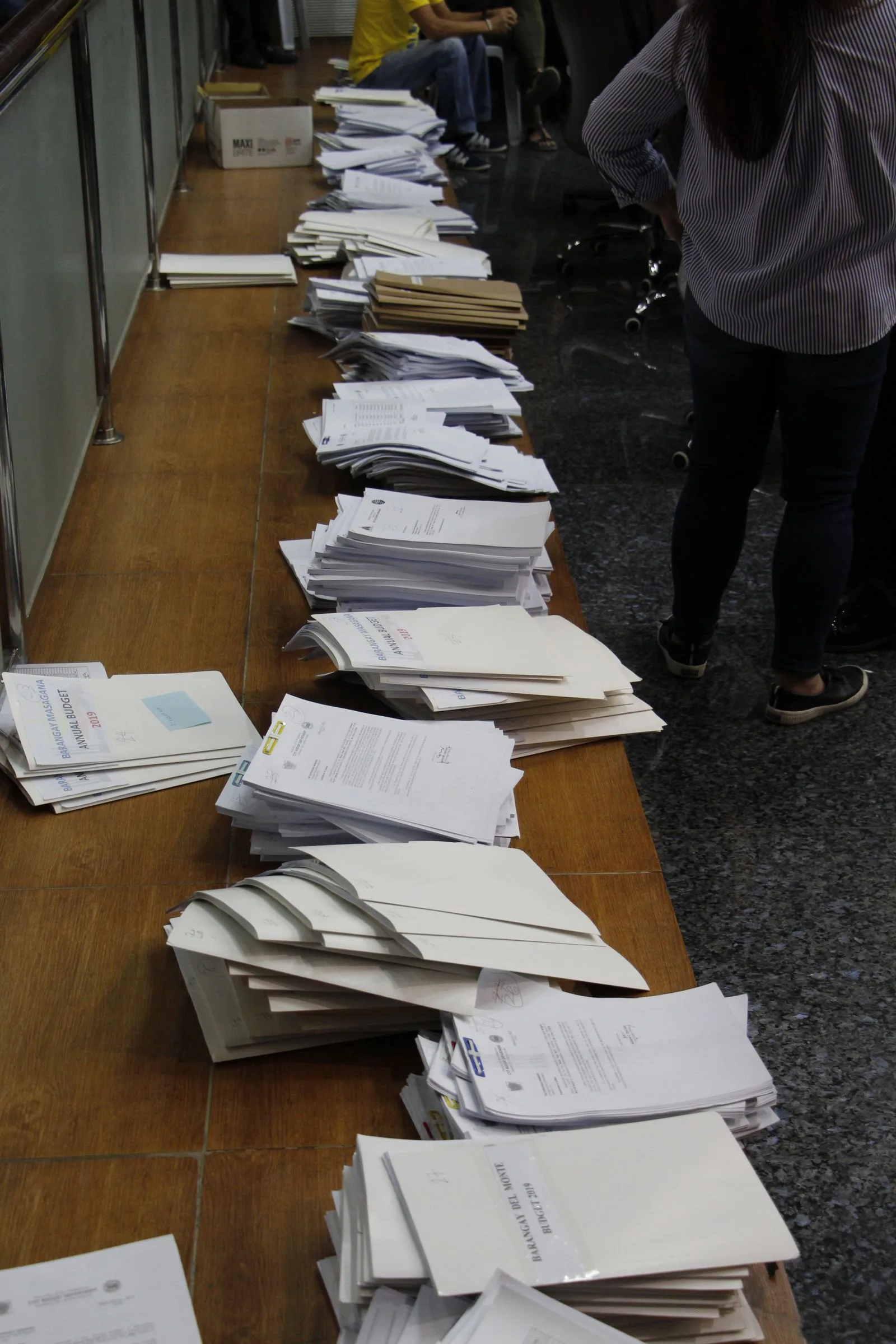 Organising
How to merge PDF files into one document
Combine contracts, scans and reports into one clean file — and learn how to order pages, drop the parts you do not need, and keep the result easy to navigate.
6 min readRead guide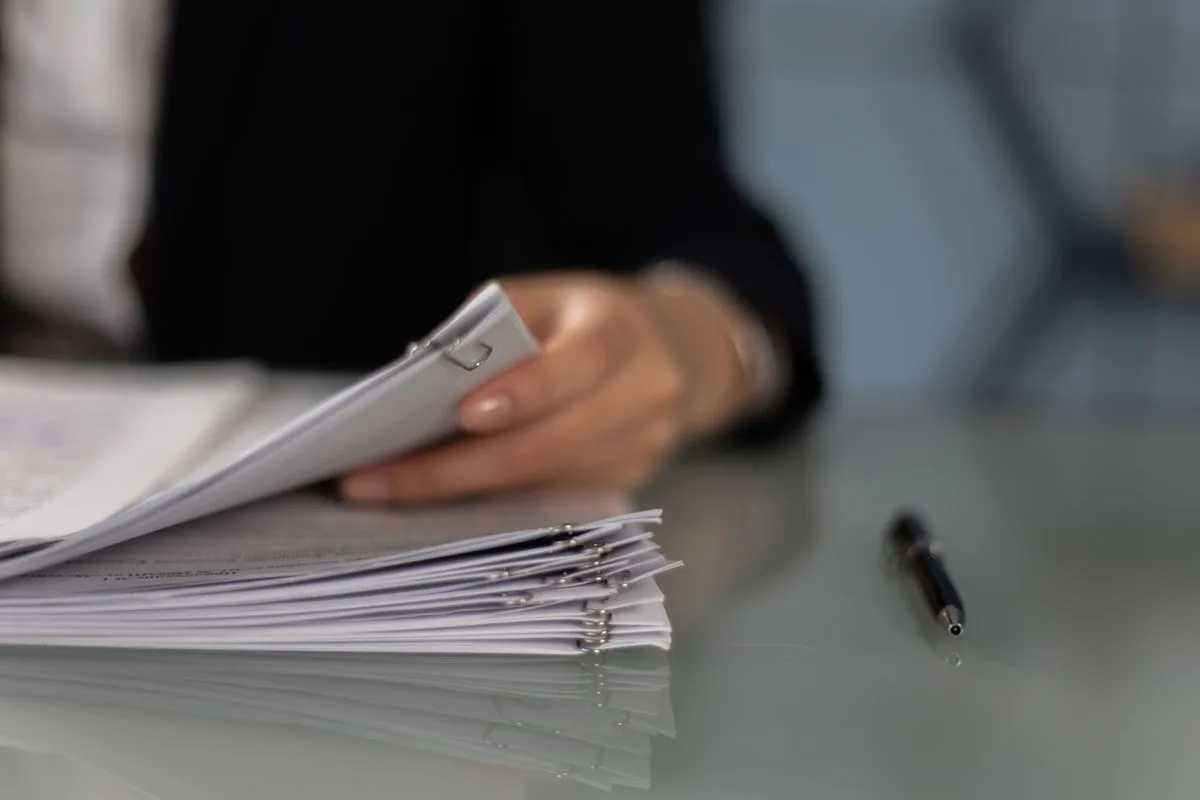 OCR
OCRHow to make a scanned PDF searchable
A scanned PDF looks like a document but behaves like a photo. OCR changes that — here is how it works and how to get clean, searchable text from your scans.
7 min readRead guideTry these tools in your browser
Docu Stop runs the core PDF and image tools for free — no sign-up, no watermark, nothing to install.